To Do in D2L Brightspace
To Do provides students with a snapshot of assignments that have upcoming due or end dates in D2L from all active courses into one convenient list. Once an assignment is submitted, it is removed from the To Do list. This tool is designed to help students stay organized and on track throughout the semester.
On This Page:
- What Students See
- What Instructors See
- Seeing the Student View of To Do
- Adding the To Do Widget to Your Course Homepage
What Students See
For students, To Do appears on the navbar of their D2L homepage (see below image).The To Do List will ONLY display assignments from all active courses that have due or end dates set in D2L by an instructor. Students should be advised to continue to review their course syllabi, schedules, course pages, and communications from instructors for all assignments.

What Instructors See
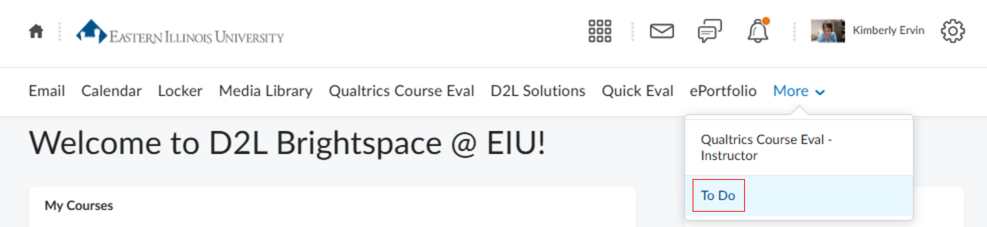
For instructors, To Do appears under More on the top navigation bar of their D2L homepage (see image below). Instructor accounts will display a message indicating that there are no tasks because the tool is designed specifically for students. However, if you are enrolled as a student in an EIU course, you will be able to view upcoming course work with due or end dates from active courses.
Seeing the Student View of To Do
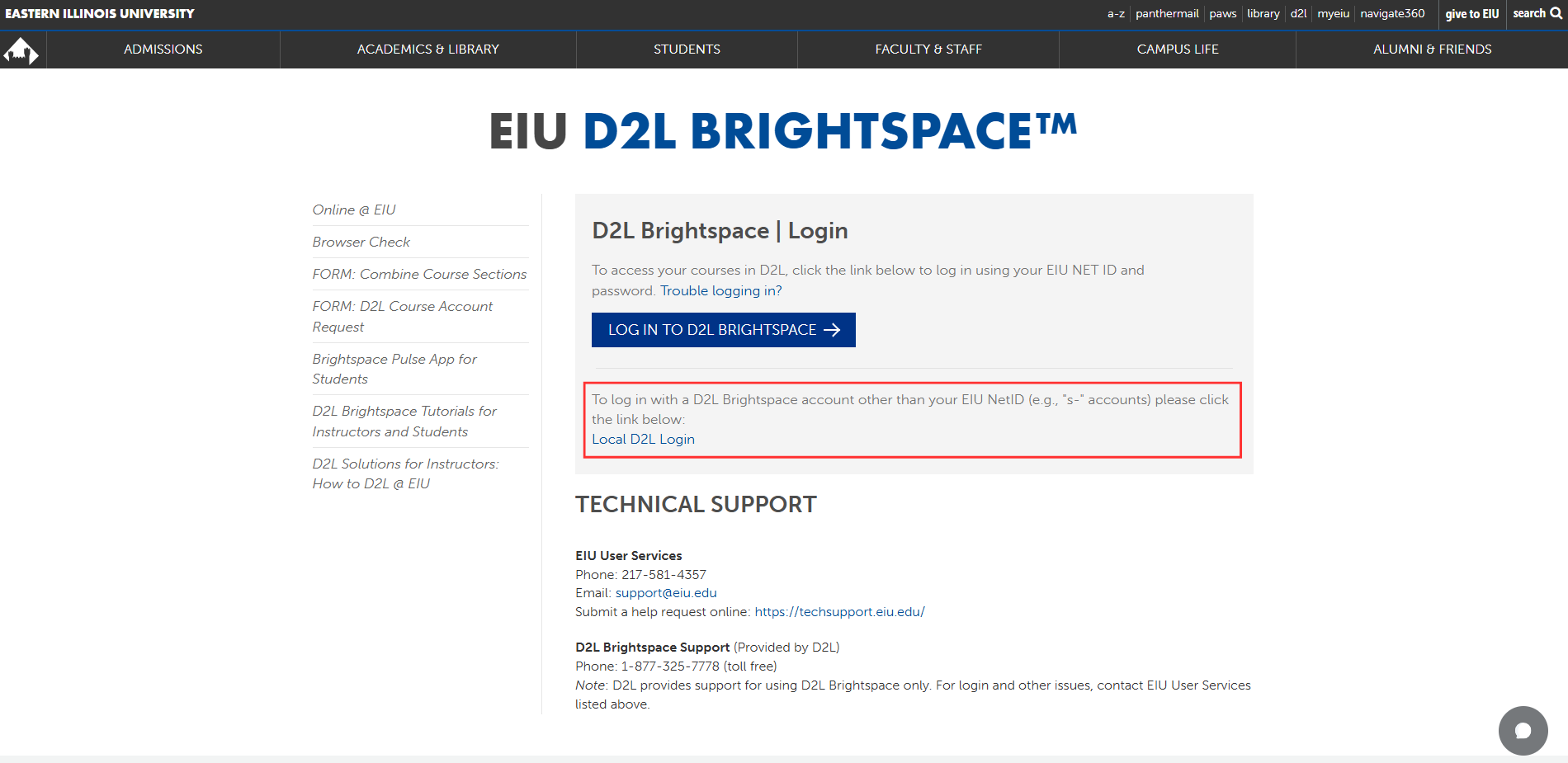
To see what students view in To Do, log in to your D2L s- (s dash) account from the EIU D2L Brightspace Website (see below image) and look for To Do from the top navigation bar. This will allow you to explore the tool from the student perspective and see upcoming coursework displayed. The FDIC encourages faculty to introduce the To Do tool to students as a convenient way to keep track of coursework with upcoming due dates. Encouraging students to use this tool can help them stay organized and manage their coursework throughout the semester.
Adding the To Do Widget to Your Course Homepage
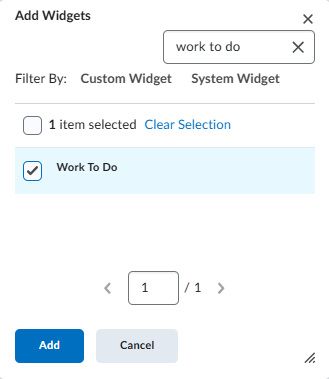
Instructors can also add the To Do widget to their D2L course homepage by following the steps on the Modifying Your Course Homepage webpage using the following detail:
- Step 4: To add a widget, select the Add Widgets button. Place a checkmark to the left of the Work To Do widget, then select Add.
The written tutorials and video simulations on the D2L Solutions site are developed and brought to you by the
Faculty Development and Innovation Center
phone 217-581-7051 :: email fdic@eiu.edu :: web www.eiu.edu/fdic
Contact the FDIC for questions about the instructor guides, to suggest topics for new guides, or to schedule a consultation appointment. The FDIC staff can recommend integration solutions using D2L and other instructional technologies for your online, hybrid, HyFlex, and face-to-face courses.
For Help with D2L Brightspace
Send your request for assistance to fdic_help@eiu.edu and an FDIC staff member will assist you.
